Review the Order Information
- Review the Order details thus far which displays the Patient Information, Date of Service, Ordering Agency, Ordering Doctor that was entered from the previous screen.
- A table of Recent Order History is displayed on this screen for review as needed. The Order Number in the Recent Order History table may be clicked to view the Order Summary for that order. If you view the Order Summary in the order history you may click the browser’s back button to return to the previous screen.
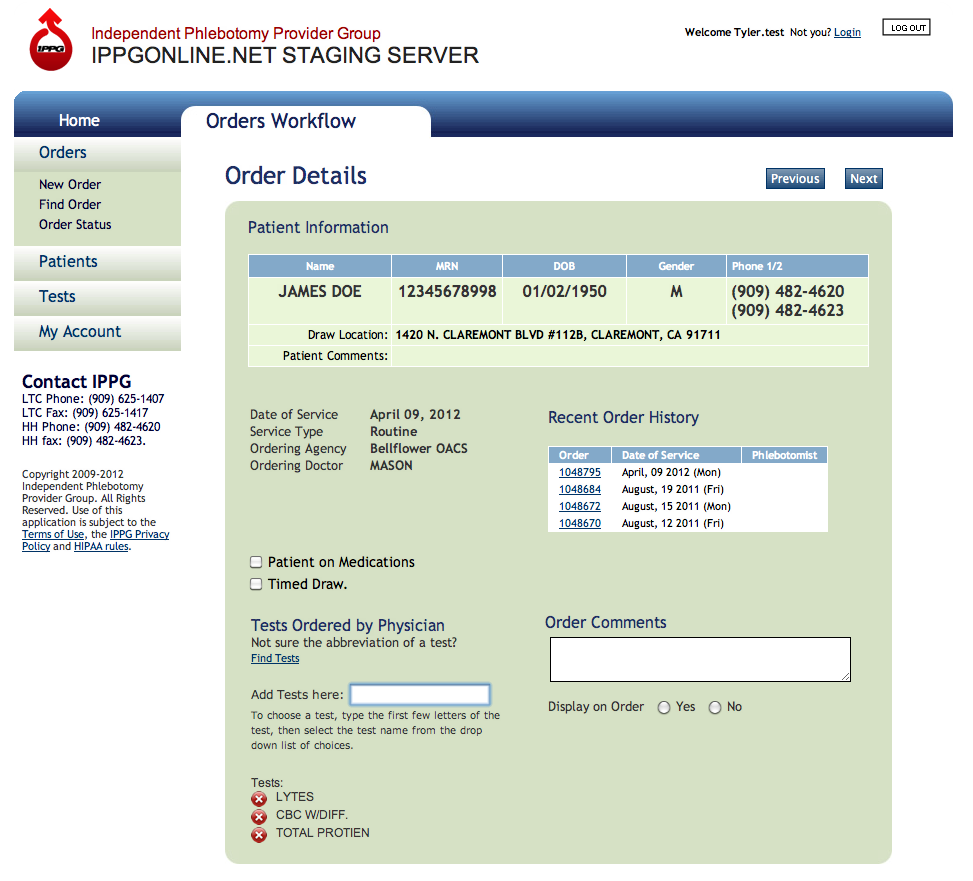
Review and Add Tests Ordered - Click to enlarge
Adding Tests to the Order
- If there are any Timed Draws, select the check box and enter the Dose Time and Draw Time as needed using 24 hour time notation (e.g. 13:00 for 1pm)
- Enter the tests ordered. Type the first few letter of the first test. Predictive text will filter the tests, then choose the tests from the drop down by clicking the name of the test. If there are more than one test ordered, begin typing the next text in the same manner. Follow the on-screen instructions below the test form field regarding “free texting” of test, etc.
PLEASE NOTE: YOU MUST CHOOSE THE TEST FROM THE DROP DOWN MENU OF TEST CHOICES – NO FREE TEXT INPUT IS ALLOWED IN THIS FORM FIELD. IF A TEST IS INCORRECTLY ENTERED CLICK THE RED “X” NEXT TO THE TEST TO REMOVE IT FROM THE ORDER - Enter Order Comments. If there are order comments, enter them in the Order Comments field. The comments may be displayed on the order by choosing the “yes” or “no” radio buttons. Some service notes may not be necessary to appear on the order if they are for internal purposes only. Information pertinent to the Phlebotomist’s patient care should appear on the order.
PLEASE NOTE: IF YOU ARE UNABLE TO FIND THE TEST PLEASE ENTER SPECIAL INSTRUCTIONS IN THE ORDER COMMENTS FIELD. - Click the Next button