Patient Location Data, Contacts & Medical Center
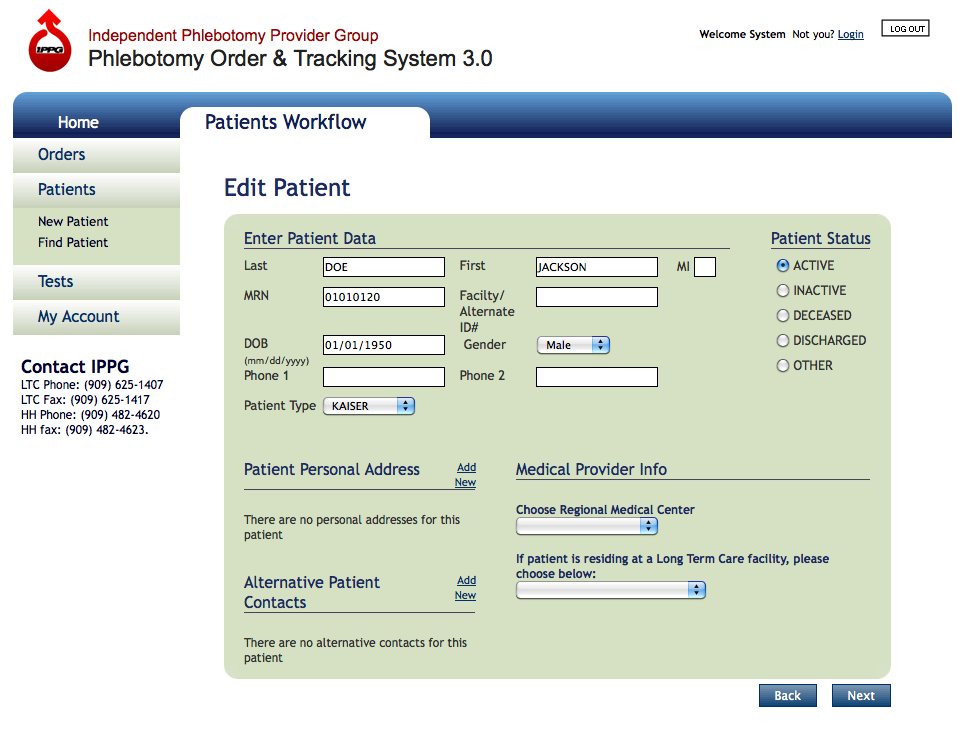
Enter the Patient's Location data on this screen - click to zoom
Add Draw Location
The patient’s draw location is either their personal home address if the patient is a home-bound patient or a Facility. Depending on your user credentials will determine what draw locations can be added to the patient (i.e. personal addresses or Facility).
Please note: if you are a Facility use the Regional Medical Center and Long Term Care Facility menu items will automatically be chosen for you and may or may not appear on your screen for selection.
Adding a Personal Address
To the right of the Patient Personal Address title, click the Add New link to add a personal address to the patients address book. Patient’s may have unlimited personal addresses in their address book ideally suited to home-bound patient’s who spend time at different personal addresses (e.g. patient home address and/or the patient’s son’s address).
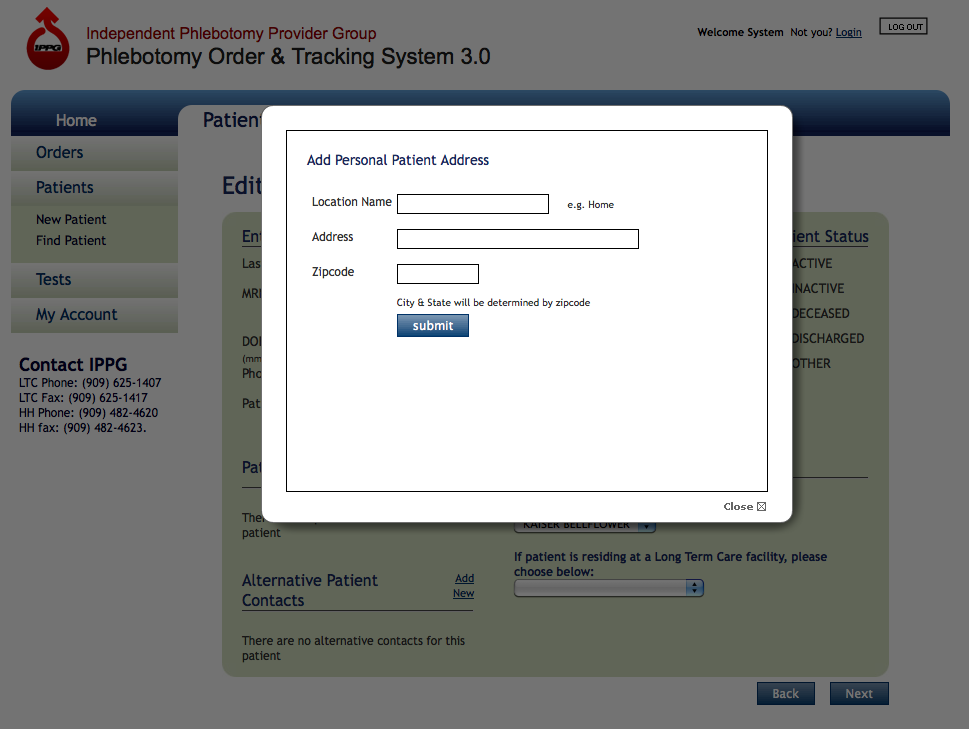
Adding a patient's personal address which happens in an overlay window - click to zoom
When adding the patient’s personal address the following fields are required:
- Location Name (e.g. Home, Son’s Home, Assisted Living Facility Name)
- Address (this is the physical street address)
- Zipcode (note that the city and state are automatically determined by zipcode)
Click the Submit Button to save the personal address to the patient’s address book. The Patient’s Personal Address list is updated with the data entered from the overlay window. The address actions include Edit, View Map or Delete.
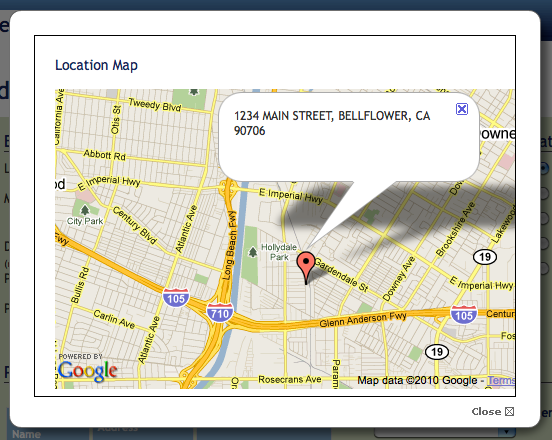
View Map
If a user wishes to view the patient’s personal address, simply click the View Map link and the patient’s address will open in an overlay window so the user can visually identify the patient’s home address.
Patient Address is a Facility
If the patient’s address is a Facility, the address is NOT a personal address and must be selected from a list of possible Facilities filtered by Medical Center. To add a facility to the patient’s draw location, first choose the Medical Center that the facility belongs to, then choose the facility. Then click the Next button to save the facility to the patient’s possible draw locations.
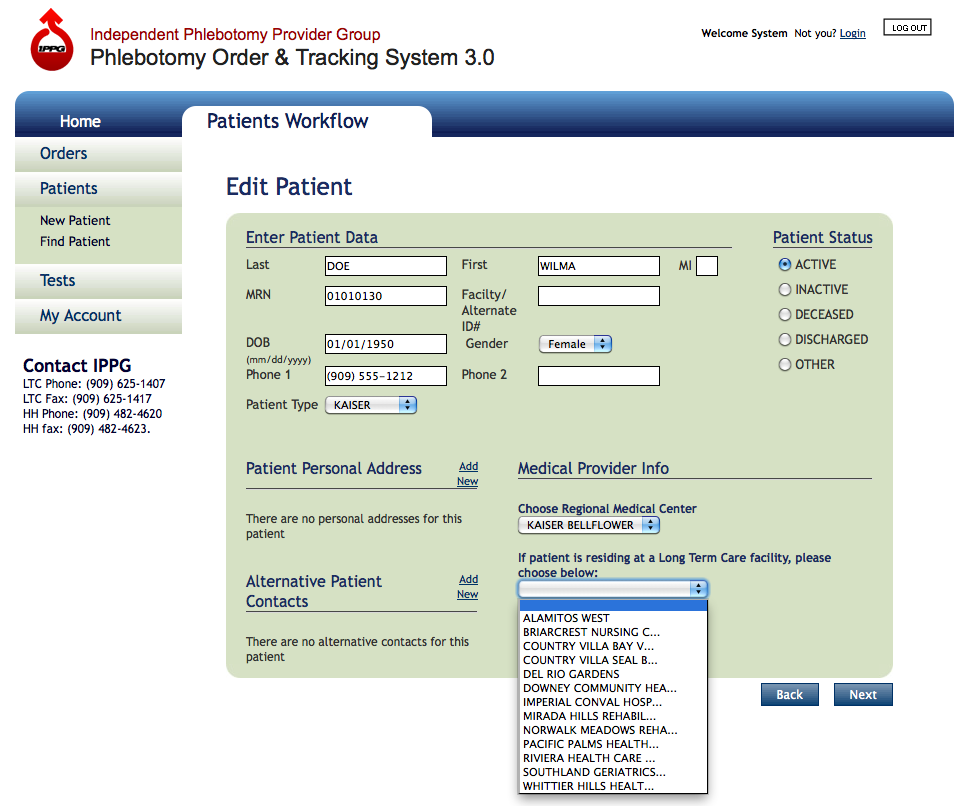
Choosing a Facility based on Medical Center
Patient Alternative Contacts
If there are any Alternative Patient Contacts they may be added by clicking the Add New link to the right of the Alternative Patient Contacts title. If a patient has a family member or other person who can speak on behalf of the patient or be contacted regarding scheduling appointments, their contact Name, Telephone Number and Relationship should be added here.
Enter the information in the form fields, then click the Submit button. A notice will be posted on top of the screen if the contact was successfully added. Click the Close link or simply click anywhere outside the overlay window to close the form. To add another contact repeat the above steps. There may be more than one Alternative Patient Contact added.
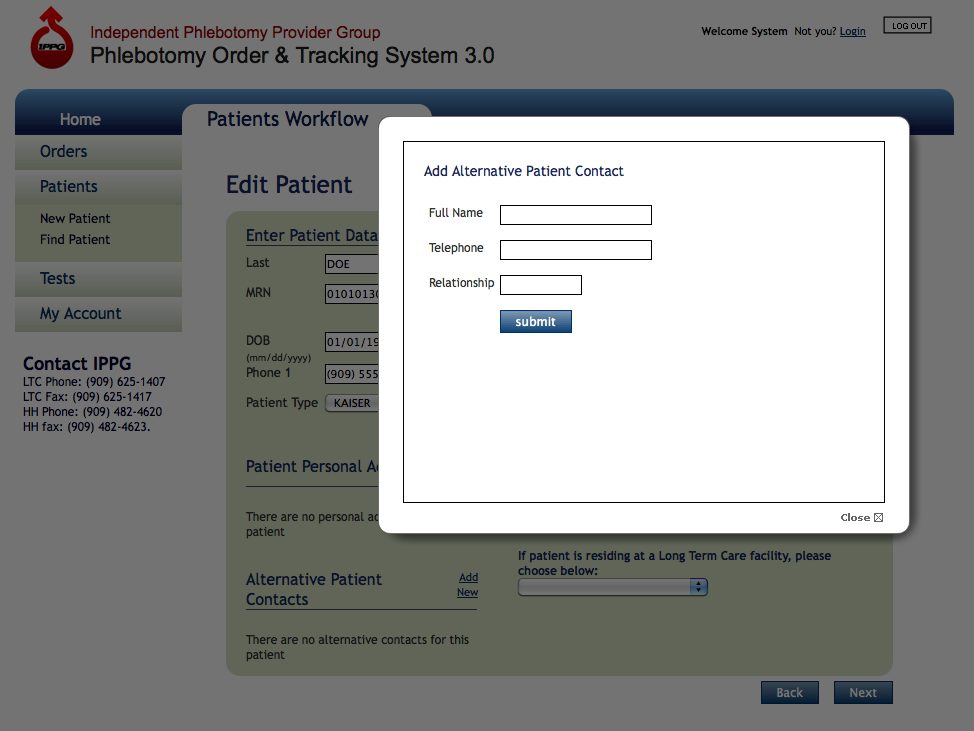
Enter the Alternative Patient Contact's Full Name, Telephone Number and Relationship.