Follow these steps to create a new order for this patient.
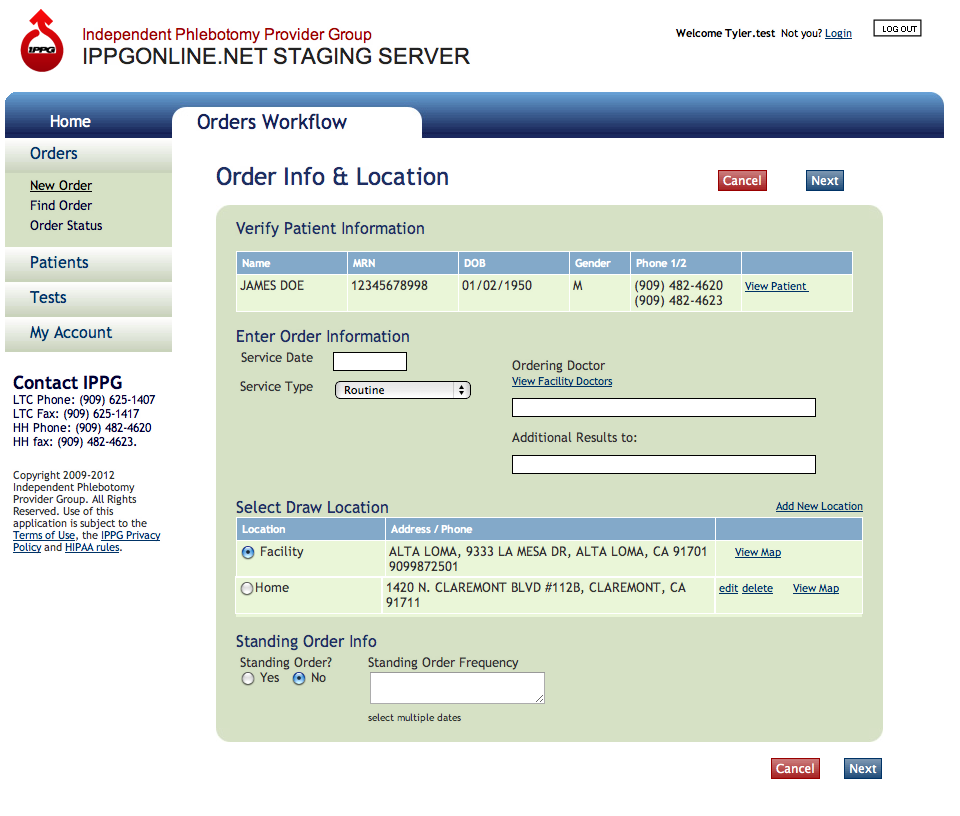
Create Order Screen - click to zoom in
- Enter the date of service. A calendar will appear to select the correct day/date. Typical users may only select the current day or future days for orders. Note: If you are logged in as an back office user additional fields for date and time received will be present.
- Choose the service type from the drop down menu of choices
- If this is a standing order, choose the dates from the calendar picker based on the doctor’s orders
- Enter the Ordering Physician by typing the first few letters of the doctor’s last name. Predictive text will help filter the doctors from the available choices. Click the doctor’s name from the dropdown menu of choices. Note: Only doctor’s whose names appear in this list may be chosen. Free texting of doctor’s names is not allowed. If the doctor does not appear in the list please call IPPG to add the doctor to the system.
- Send Additional Results. If additional results should be sent to another physician, enter them in the Additional Results To form field in the same manner as above. Note: This list of physicians is not limited to the physicians who are assigned to a Long Term Care facility.
If the logged in user is an Agency Director or back office user, the ordering doctor’s list will be much larger than a facility user’s whose doctors choices are limited to those who attend to patients at the facility user’s facility. - Click the Next button